News items are among the first things your users will see when they log in to Populi. Visible on Home > Dashboard, you can use them to keep your school informed about events, resources, announcements—whatever you feel like posting.
- Anyone with the Staff role can add, edit, and delete news items via Home > Manage News.
- The news feed shows excerpts from the 50 most recent items.
- When an item is published, it takes its place at the top of the news feed.
- To ensure that users view important items, you can mark an item as Featured.
Manage News
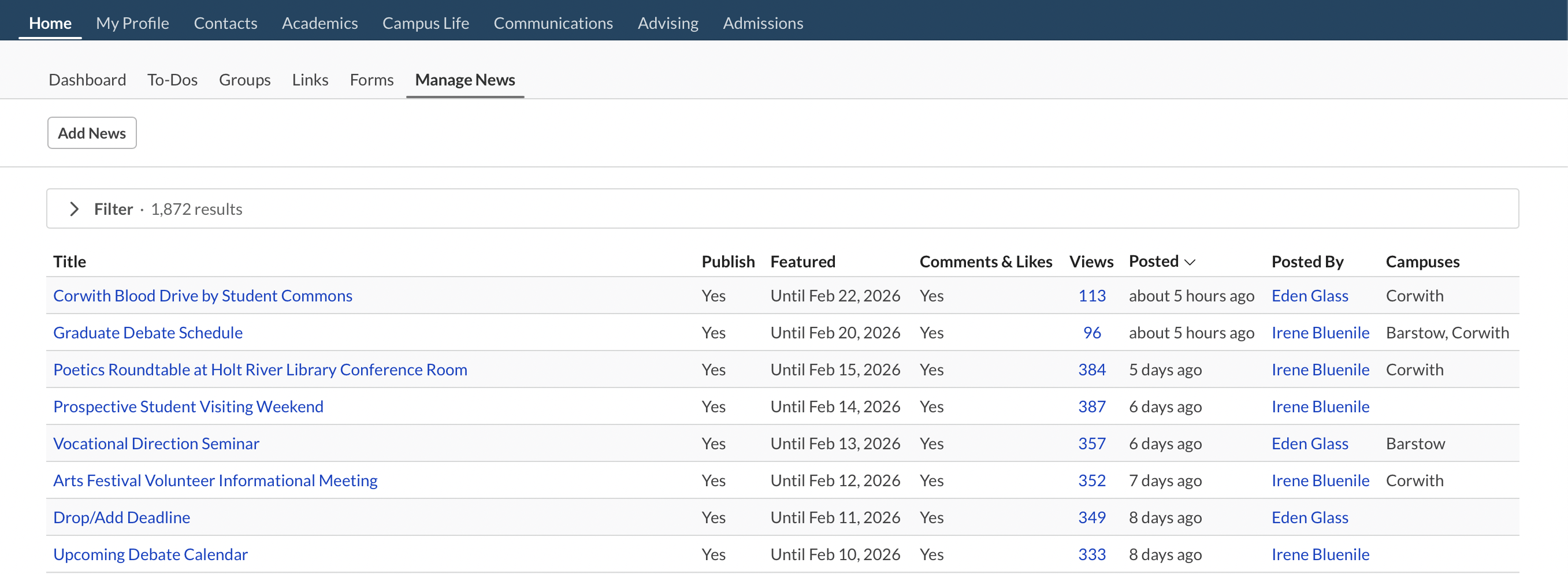
Home > Manage News gathers all of your news items and gives you the basic info. To view, edit, or change settings for a news item, click its title. These controls are explained in the next section...
Adding (and editing) news items

- Click Add news to create a new item, or click a title to edit an item.
- Enter a title and compose your post. Use the WYSIWYG to format your post and add links and images.
- Choose your publication settings:
- You can publish immediately (Yes), un-publish (No), or set the item to publish at a certain time.
- Choose whether to mark an item as Featured. Featured items exhort the user to read them with a notice on Home > Dashboard.
- Do you want to allow users to add comments and likes? If so, choose Yes.
- News items are visible to everyone unless you select specific roles or campuses. Choose where and to whom you'd like to publish this item.
- Attach files if you like—these can be downloaded by anyone who can view the item!
- When you're done, click Save News.
After Publication
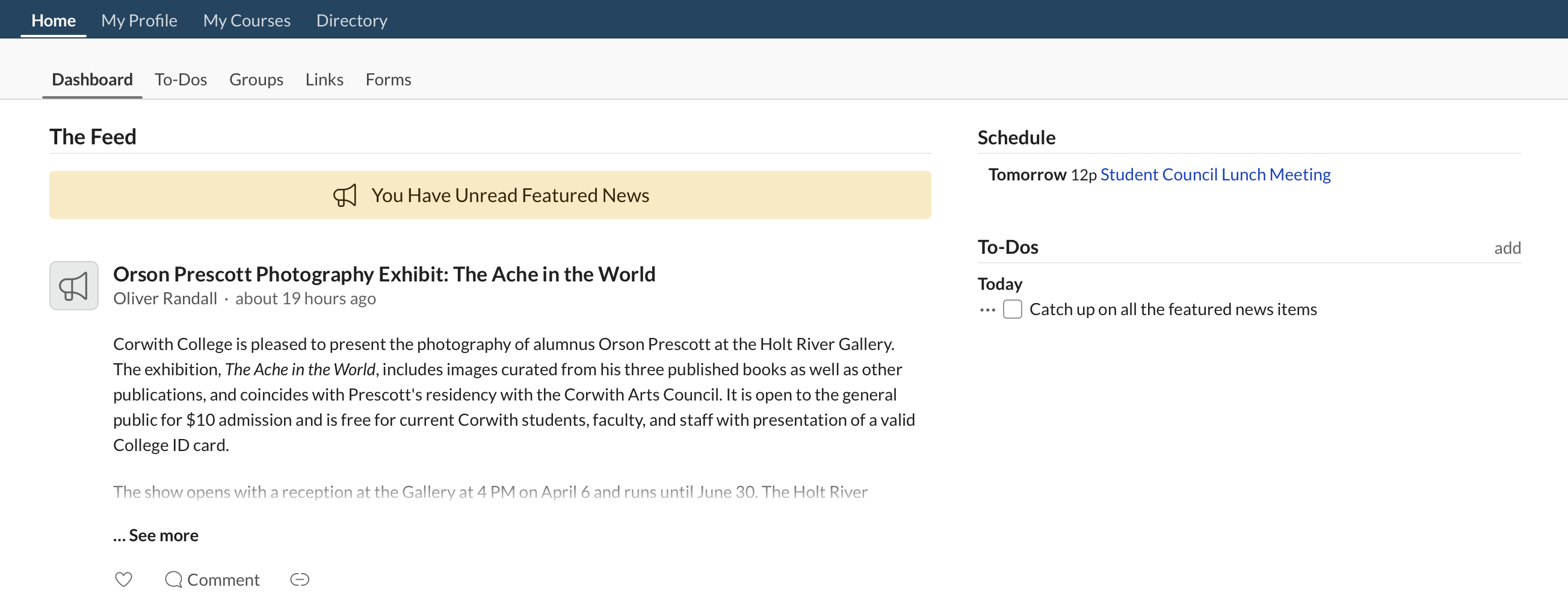
News items display on Home > Dashboard to users based on the campus and user role visibility settings you selected (if you didn't select any, they display to all users). More details:
- The notice about unread featured news displays until the user has viewed all such items. To view an item, a user has to click the article title.
- Featured refers to "currently featured"—that is, the setting is set to Yes or the Featured Until date hasn't yet arrived.
- Users can click under any item to copy the article link to their clipboard. Should they want to share it, the recipient needs to have a login to your Populi site in order to view it.
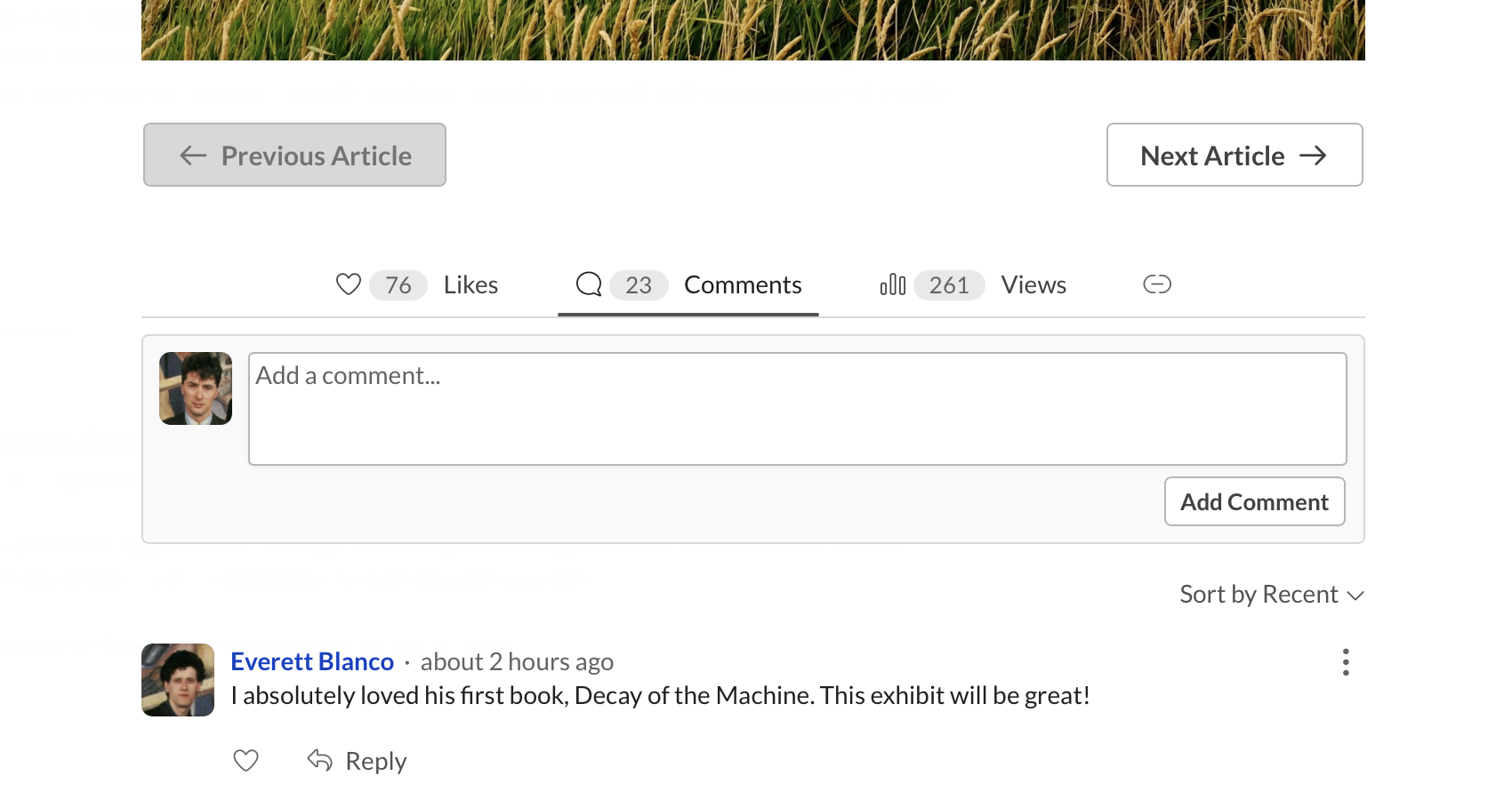
- As reads, likes, and comments accrue, Staff users can see them by clicking the article title.
0 Comments