There are two ways you can operate Campus Store
With credit cards
If you enable credit cards as an online payment method, then you can...
- Sell items through both the Point of Sale and the online shopping cart.
- Use all of these payment methods: cash, check, credit/debit card, and charge-to-student-account.
Without credit cards
If you do not enable credit cards, then you can...
- Sell items through Campus Store only via the Point of Sale.
- Use these two payment methods: cash and check.
The Campus Store setup process
- If you're going to accept credit cards, start by going through the online payments setup process.
- You fill in the required Campus Store settings. (Even if you're not taking credit cards, you'll still need to go to Financial > Settings > Online Payments and fill in the Refund and Privacy Policy settings.)
- Your Populi account administrator goes to Account > Customizations and checks Yes to enable Campus Store (only after Step 1 is completed).
- You add items and test out a few sales processes to get started; afterwards, you start taking orders!
Step 1: Set up online payments

If you wish to accept credit cards and use Campus Store's shopping cart features, a Financial Admin user must complete the online payments setup process in Accounting > Settings > Online Payments.
If you wish to only use Point of Sale and accept cash and checks, you need only fill out the Refund Policy and Privacy Policy fields on the Online Payments settings screen; afterwards, you can move on to Step 2.
Step 2: Fill in Campus Store settings

Getting into Campus Store to set it up
You start setting up Campus Store by going to Campus Store Settings. There are two ways to get there:
- Enter
https://yourschool.populiweb.com/router/bookstore/settings(replace "yourschool" with your school's unique Populi site abbreviation) directly into your browser. - If you're a Populi Account Adminstrator:
- Go to the Account app and select Customizations from the left sidebar.
- Scroll down to the Enable Campus Store setting; click the Campus Store link.
- Click Admin in the upper right of the screen.
- Click either Go to Campus Store settings (under the "Campus Store disabled" message) or Settings (in the left column under Setup).
Campus Store Display Name
By default, your campus store's display name will be "{COLLEGE NAME} Campus Store". If you'd rather have this say something else, enter it here (and remember, brevity is the soul of wit).
Payment methods (Required)
Check the payment methods you wish to accept for campus store purchases. Credit Cards will be automatically selected after you've set up one or more payment gateways in Financial > Settings. If you're not taking credit cards, then your shoppers will not be able to use your online shopping cart—but you'll be able to make sales through Campus Store > Point of Sale.
Apply tax to shipping
Several US states require the merchant to pay sales tax on the total order amount, including shipping. Look into your state regulations and check this box if you are required to do so.
Campus Store greeting
Your customers will see this message on the Home tab of your Campus Store. You can use text formatting in the greeting.
Default income account (Required)
Enter the income account number (from your Chart of Accounts) that you wish campus store purchases to affect by default (this can be overridden for individual items).
Sales tax payable account
Enter the liability account number (from your Chart of Accounts) in which you wish sales tax charges to be recorded. If set, sales tax will be automatically split out from actual Campus Store purchase income. If blank or invalid, the entire amount of all purchases will be recorded as income in the default income account.
Inventory cost flow
Does your accountant use the first-in, first-out (FIFO) method, or last-in, first-out (LIFO) method for calculating the value of campus store inventory?
Inventory asset account
Select the asset account in which you will track the value of your unsold inventory. The balance of this account will be calculated according to the method you choose in the Inventory cost flow setting.
Inventory purchases account
Select the asset account in which you will track the value of inventory purchases.
Inventory shrinkage account
Select the expense account in which you will track the value of inventory shrinkage. The balance of this account will be calculated according to the method you choose in the Inventory cost flow setting.
Cost of goods sold account
Select the expense account in which you will track the cost of goods sold. The balance of this account will be calculated according to the method you choose in the Inventory cost flow setting.
Shipping income account
Enter the income account number (from your Chart of Accounts) in which you wish campus store shipping charges to be recorded. If set, shipping charges will be automatically split out from actual Campus Store purchase income. If blank or invalid, the entire amount of all purchases will be recorded as income in the default income account.
Shipping on account fee
Select a fee to which Campus Store can pin any shipping charges on an order that a student charges to his account. We heartily recommend setting up a unique fee for this purpose ("Campus Store Shipping", f'rinstance).
Start Point of Sale in scanning mode
This is helpful if you have a barcode scanner or credit card reader attached to your computer.
Student Charge to Account Limit
Enter the maximum amount (in dollars) that students may charge to their accounts (that is, to roll their Campus Store purchase amounts into their regular Populi invoices). Only fill out this option if you're using credit cards as a payment option!
Tax Rate
What is your state sales tax (or Canadian VAT) rate?
Tax on account fee
Select a fee to which Campus Store can pin any Sales Tax charges on a Campus Store order that a student charges to his account. We heartily recommend setting up a unique fee for this purpose ("Campus Store Tax", f'rinstance).
Tax State
List all states in which your institution has a physical presence. Enter the standard State abbreviations (TX, MN, IA, etc.), and if more than one, separate them with commas. Customers with billing addresses in the states listed will be required to pay sales tax on their purchases. Leave this field blank to make tax apply to all states.
Tax by ZIP code

Some states allow local governments (city, county) to impose additional sales taxes for online purchases shipped to those ZIP codes ( North Carolina, for example).
- Enter the ZIP code and additional sales tax percentage.
- Additional fields will appear. If you don't need to enter any more ZIP codes, leave the last one blank.
- Click X to delete a ZIP code from the list.
Step 3. Get Campus Store ready for customers
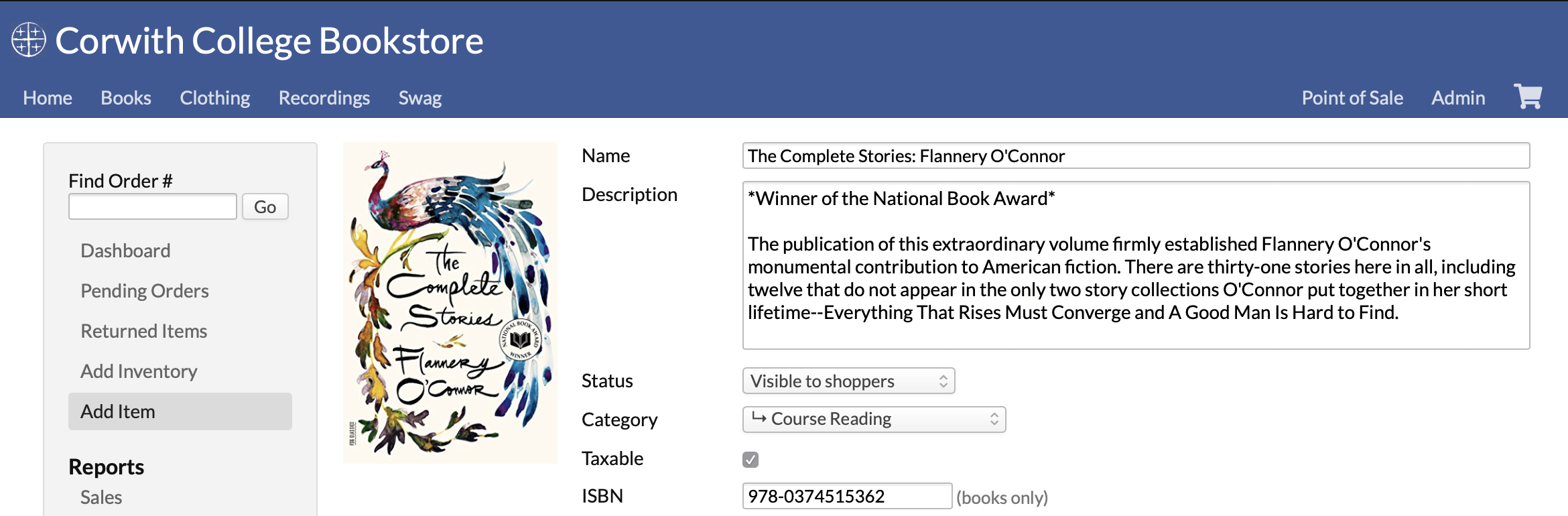
Getting your Campus Store ready for your customers involves setting up items like shipping, discount codes, return reasons, and, of course, adding items to your inventory (so you have something to sell!).
- This article covers shipping, discount codes, and other such things.
- This article covers items and inventory.
Step 4. Enable Campus Store

Your school's Populi account admin must go to Account > Customizations to check this setting. Once checked, your Campus Store is active and ready to accept orders. Until you do this, your Campus Store will not accept any orders.
Now that it's all live...
After logging back in, Populi will do a few new things.
Getting to campus store
Logged-in users can get to the campus store via the app dropdown .
Anyone can navigate to your your Campus Store via https://yourschool.populiweb.com/router/bookstore. You can make it easy on everyone by linking to it from your school's website. Users will also be able to navigate to the Campus Store within Populi via the App Dropdown.
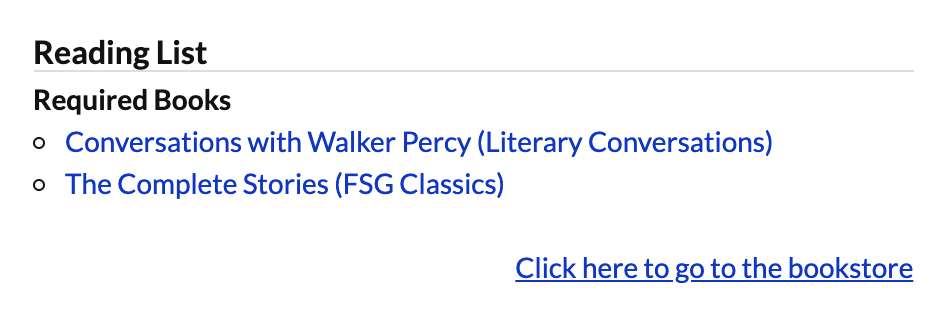
ISBN's establish links between courses and your Campus Store. If course instructor includes the ISBN in his reading list entry, and you've entered the same ISBN for a campus store item, students can link directly to the Campus Store from the course and find those reading list items for purchase:
0 Comments