
Campus Store gives you an online shopping cart and point-of-sale system for your school's bookstore. Online shoppers can browse and purchase items via the shopping interface or via Buy Now links for individual items embedded on other sites. In-person sales can be handled using Point of Sale, which works with USB barcode scanners and credit card readers. Students who want to pay later can charge their Campus Store orders to their accounts. On the back end, you can manage inventory, process online orders, and run sales reports. Additionally, all Campus Store transactions are automatically fed into your General Ledger.
User roles
Campus Store Admin: Campus Store Admin gives a user read/write access to all components of Campus Store, including settings. You'll need this role in order to set up Campus Store (together with a Financial Admin to set up the Chart of Accounts).
Campus Store: Campus Store gives a user the ability to run day-to-day operations in Populi Campus Store—processing orders (Point of Sale and online), viewing reports, and some item and inventory management. They do not have access to Campus Store Settings.
Navigation
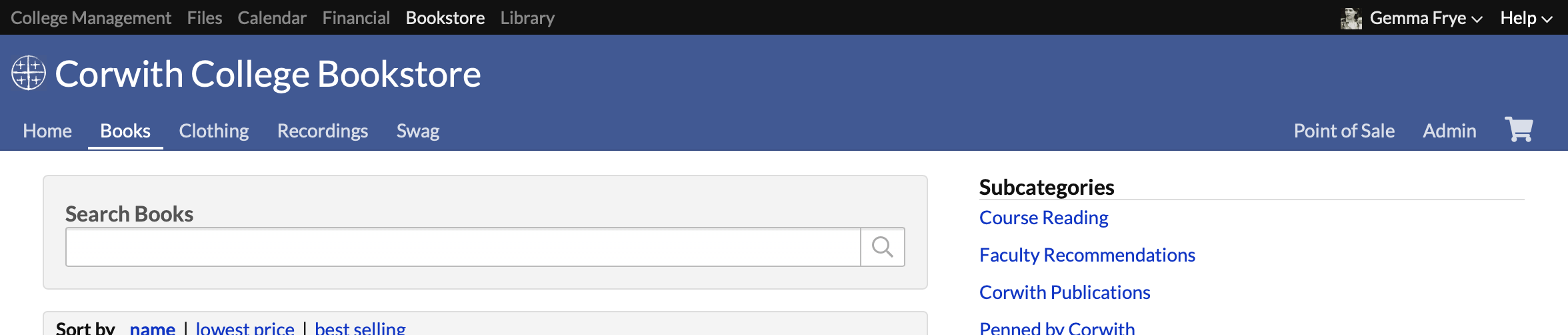
Before Campus Store is enabled, your Populi account administrator can directly access the link via Account > Customizations. Ask them to share the link with you and bookmark it during setup.
After Campus Store is enabled, everyone at your school will see Campus Store in the App Dropdown. Online visitors will also be able to access it by going to https://yourschool.populiweb.com/router/bookstore/home.
Campus Store has four main views: Home, Point of Sale, Admin, and My Cart. As you add categories, they will appear next to Home. All views are always visible to you. Students and other visitors will only see the shopping views and My Cart.
- Home is the main shopping view. It includes Campus Store search, featured items, and your Campus Store greeting message. You can also add new items here (and a few other places).
- Category views are added when you create them in Admin > Categories. They include category-specific search, featured items, and subcategories (if any).
- Point of Sale lets you checkout over-the-counter orders. You can search for or scan items for purchase, process returns, swipe credit cards, record other payment methods, and charge items to student accounts.
- Admin lets you review and fulfill orders, view reports, manage items and inventory, and manage settings.
- Your cart works much like any online shopping cart. If you're shopping, it stores your items, lets you manage your order, and proceed to the checkout.
Recommended equipment for Point of Sale
If you're using Point of Sale, we encourage you to spring for a USB barcode scanner and credit card reader. There are several fine, inexpensive models to choose from. These tools aren't required to use Campus Store (you could just type everything out...), but they sure do make life easier for campus store staff.
0 Comments