Locks let you restrict students from accessing certain parts of Populi while the lock is in effect. For example, you could add a Registration Lock to undergraduate students with GPAs below 2.0, thus excluding them from accessing online registration on their own. Here's how locks work:
- Locks have three elements:
- Type: The name of the lock (e.g. Registration, Courses, etc.)
- Area: The parts of Populi the lock restricts a student from accessing.
- Permissions: Which user roles can add/edit the lock and which roles can read the lock reason.
- Populi has a number of built-in locks (described below). If you need additional locks or would like to modify the built-ins, Account Admin users may do that in Contacts > Lock Types (or you can request our help).
- Locks on individual students can be added, managed, and removed on student profiles and managed in bulk with the Data Slicer.
- You can find locked students by searching for Lock Type in the Data Slicer.
Lock areas
Each lock area affects a distinct aspect of Populi. Lock types can combine any or all (or none!) of these areas:
- Registration: Self-service, online registration during online enrollment periods
- Grades: In-progress assignment grades and final course grades
- Transcript: The ability for students to export their own unofficial transcripts
- Charge to account: Charging Campus Store purchases to student accounts
- Courses: Access to courses, content, assignments, lessons, discussions, and so on
Built-in lock types
Here are the built-in lock types, the areas that they restrict, and the user roles with read/write permissions to each:
- All locks: Staff, Faculty, the student's Advisors, and Academic Auditors can see that any lock type has been applied by looking at a student's profile. Students can always see their own locks.
-
Registration: Locks the Registration area.
- Add/edit: Academic Admin, Registrar, the student's Advisor
- Read-only: See All Locks, above.
-
Grades/Transcript: Locks the Grades and Transcript areas.
- Add/edit: Academic Admin, Registrar
- Read-only: The student's advisor
- A student can also receive a lock on a grade for an individual course if he fails to submit a course evaluation.
-
Financial Lock: Locks the Registration, Grades, Transcript and Charge to Account areas.
- Add/edit: Financial Admin, Student Billing
- Read-only: The student's advisor. Additionally, Campus Store Admins and Staff can see if Charge to Account has been locked for a student in Campus Store POS.
-
Course: Locks the Courses area.
- Add/edit: Academic Admin, Registrar, Financial Admin, Student Billing
- Read-only: The student's Advisor
Adding (and changing) locks
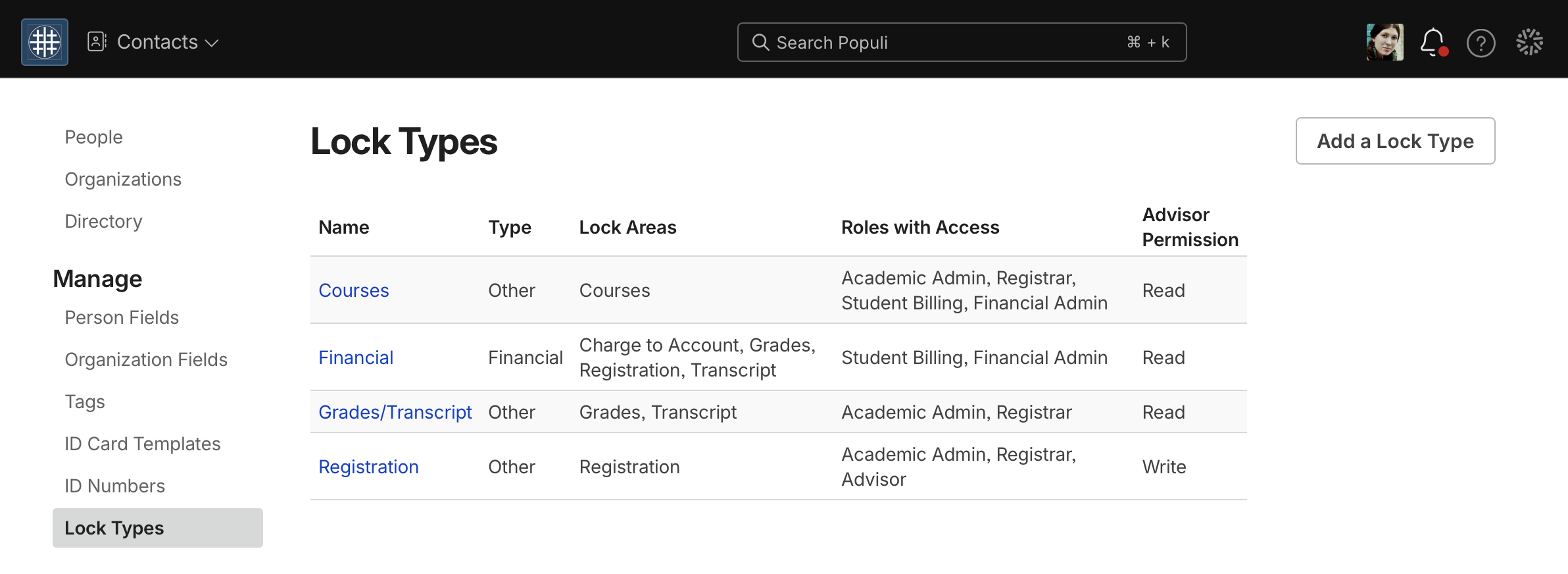
An Account Admin user can add new locks and modify existing locks in Contacts > Lock Types. A few things to keep in mind:
- Lock type: You can add as many lock types as your school needs. Lock types can duplicate each other in all other details, but each one must have a unique name!
- Lock area: Each lock type can affect any combination of the areas described above. For example, you could request a lock that restricts student access to their courses, transcript, and registration (but doesn't restrict access to transcripts or Campus Store charge-to-account). You can even set up a lock that doesn't restrict any areas at all. li>Permissions: You can specify add/edit or read-only permissions for any of Populi's user roles or the student's advisor.
- Remember that add/edit permissions let users view and change the lock, the lock reason, and the internal note. Read permissions let users view the lock and lock reason.
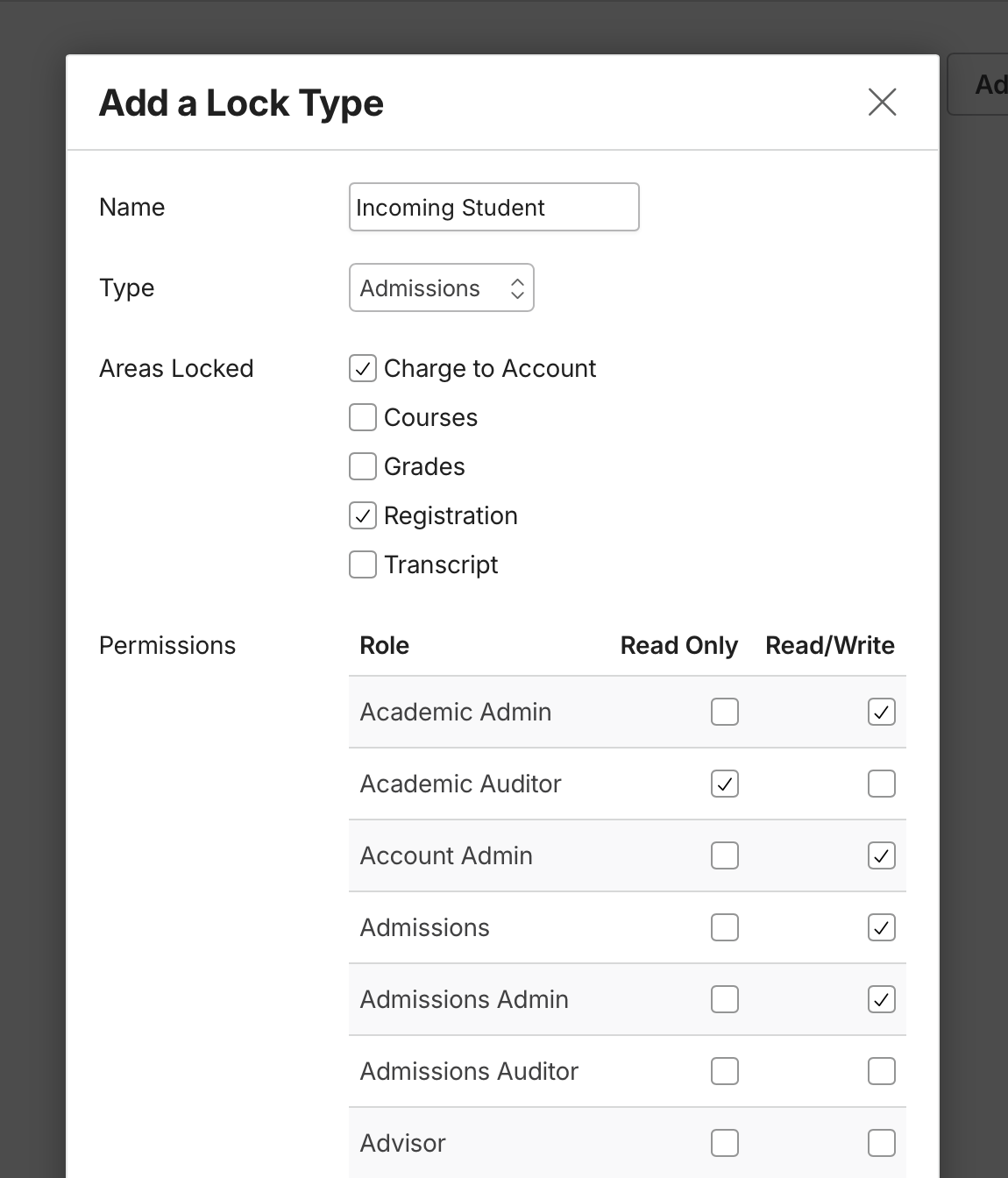
- Click Add a Lock Type or click a lock's name to edit it.
- Give the lock a name. Make sure the name is unique!
- Select the lock's category—this helps classify the lock type in terms of which office at your school is expected to use it.
- Check at least one lock area.
- Select the permissions: which role(s) can view or add/edit this lock on a student's profile or get information about it in reports?
- If you select Advisor, anyone with the Advisor role will have that access to lock information for all students. If you want to limit access to a student's advisor(s), select the access level from the Advisor Permissions drop-down below the role checkboxes.
- When you're done, click Save.
A few examples, should you need some inspiration:
- The "Campus Store" lock type, which lets Campus Store Admins restrict students from charging items to their accounts and gives Financial Admins read-only access.
- Three, separate Course locks—one for use by Academic Admins, another for Financial Admins, and yet another for Admissions Admins. The first two are meant for academic or financial malfeasance, while the last one is for use by Admissions Admins on incoming freshmen who need to nail down some more entrance requirements.
- A modified Grades/Transcript lock that also lets the student's Advisor add and edit the lock.
0 Comments