In this article, we'll tell you how to enable self-checkout in your libraries and loan policies so your patrons can check items out themselves at a kiosk.
Hardware
A kiosk is a dedicated physical device that you enable to run self-checkout. While you can use any sort of Internet-connected computer as a kiosk, the self-checkout interface has been designed to work best on a large-format touchscreen device like a tablet—an iPad or an Android tablet would work fine.
You'll also need a barcode scanner. Patrons will use it to scan the code on their Populi-generated ID card (e.g. a student or faculty ID card or a patron's library card) as well as the barcodes on the resources they check out. The scanner will need to connect to your kiosk device (corded or Bluetooth should be fine).
Setup
First, you'll go to Library > Settings > General. Scroll down to find the Enable self-checkout setting and click Yes. Scroll back to the top and click Save Settings.

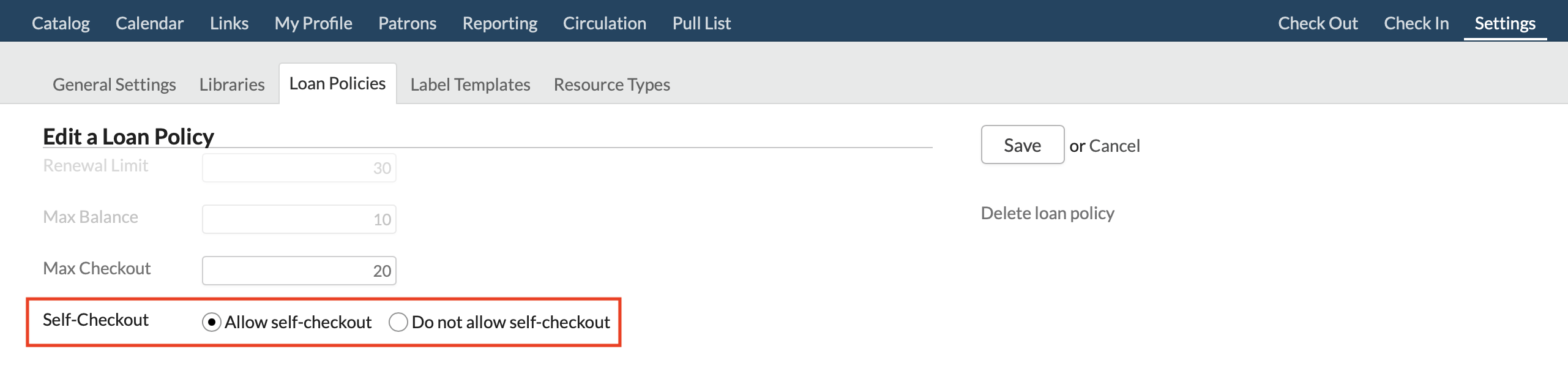
You'll also need at least one loan policy that allows for self-checkout. Go to Library > Settings > Loan Policies. Select a loan policy to edit or create a new one. Make sure to select Allow self-checkout.
Next, the PIN code:
- Go to Library > Settings > Libraries and select the library where you'd like to set up one or more kiosks.
- Under the Self-checkout PIN code setting, click Generate New Code.
- This code tells your kiosk where it is located, along with associated information about what resources are there and which loan policies affect the relevant locations, resources, and patrons.
- On the kiosk device's web browser, go to
____.populiweb.com/library/selfcheckout(enter your Populi site's school name/abbreviation in the blank). - Enter the PIN code. As soon as you've finished entering it, the kiosk is ready to roll.
- Do you have multiple kiosks at a single library? Just enter the same PIN code on each device.
- If you enter the wrong PIN code on a kiosk, patrons will not be able to check resources out.
The Kiosk
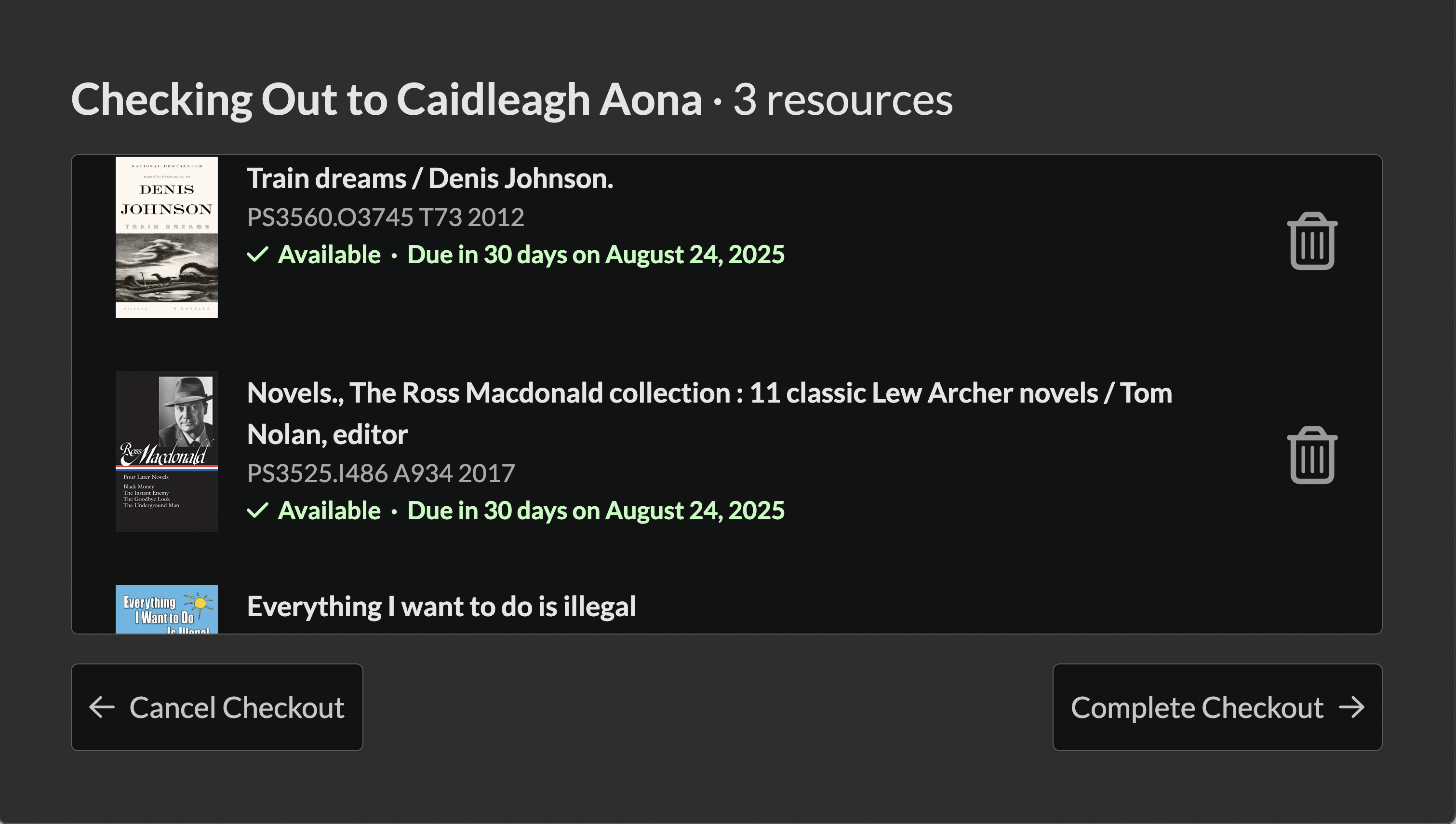
The kiosk will run indefinitely, always at the ready for patrons to come check out resources.
- As long as it's in some kind of regular use, you won't need to do anything to keep it running—technically-speaking, it runs on a "token" that authorizes its use for 365 days, but that token renews itself every time someone uses the kiosk. The only thing you'll need to keep up with is your hardware.
- If, for whatever reason, you need to close down the kiosk, go to Library > Settings > Libraries and click Generate New Code. The kiosk will not run until the new code is entered; patrons will have no access to it.
The kiosk is breathtakingly simple to operate. A patron scans her Populi-generated ID card or Library card, then scans the resource barcodes, and finally completes the checkout. Populi emails her a receipt, the loans are shown in all the relevant spots in Library, she eventually returns them, you check them back in, and so on...
0 Comments