Payment sponsors are people or organizations that have their own payment portal where they can make payments on behalf of their sponsored students (a single sponsor can make payments on behalf of as many students as they wish). This portal doesn't require that the sponsor have a user account.
Adding sponsors
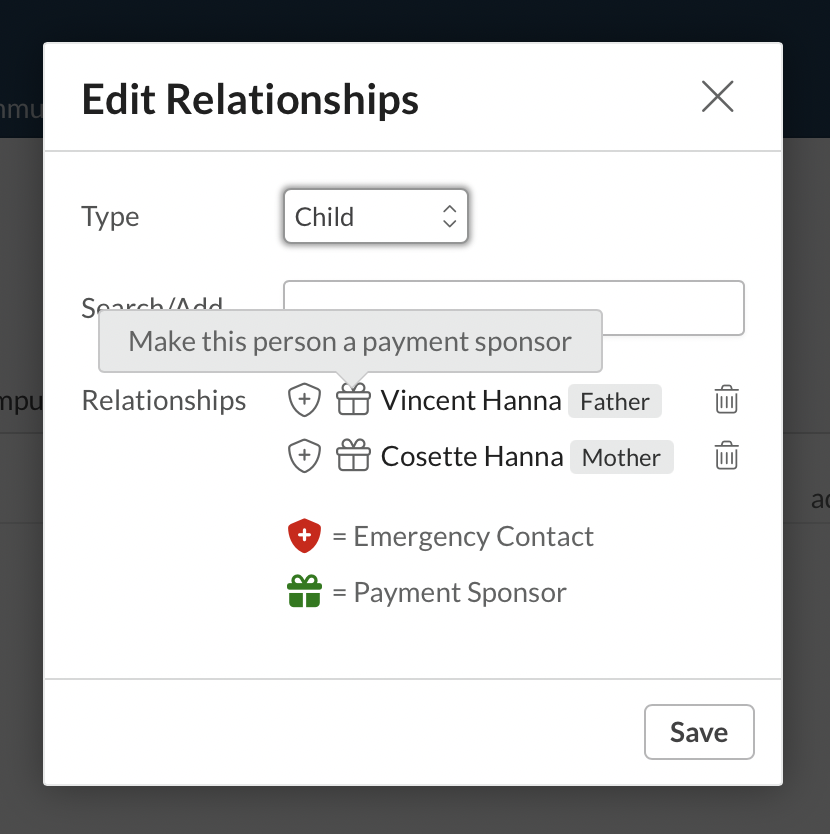
To add a person as a payment sponsor, you do so via the student's Profile > Info > Relationships panel.
- Click edit in the Relationships heading.
- If you haven't already, add the person to the list of the student's relationships.
- Click that empty gift box to mark them as a payment sponsor. The gift box will turn green, symbolizing your school's coffers filling up with the funds you'll be paid by this benevolent person.
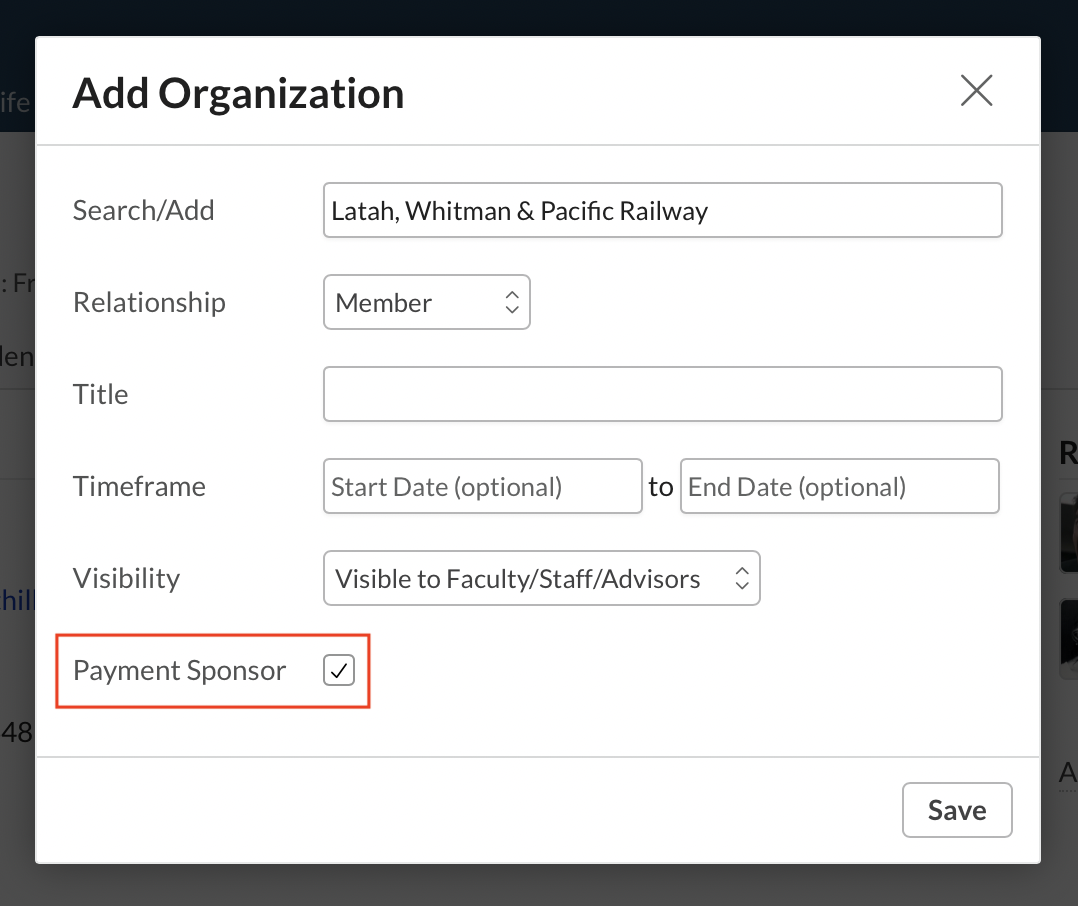
To add an organization as a payment sponsor, you can do so on the student's Profile > Info > Organizations panel or on the Organization's Members view. Before doing this, you'll need to have already added the organization in Contacts.
On the student's profile:
- Click to add or edit the student's organizations.
- Search for the organization and fill in the appropriate details.
- Check next to Payment Sponsor. There's no gift box here, but maybe a future software update will work in some of that sweet, sweet symbolism.
On the organization's profile:
- Click Add Member or click to edit an existing member.
- Search for the student and fill in the appropriate details.
- Check next to Organization can make payments....
Payment portal links
Here's how to send the payment portal link to the sponsor (whether a person or organization).
- Go to the sponsor's profile.
- In the upper right, click the ellipsis .
- Select Payment Portal Access from the list.
- In the dialog, confirm the email address to which you'll send the link or add a new one. If you add a new one, it will subsequently be added to the sponsor's profile.
- Click Send Portal Link.
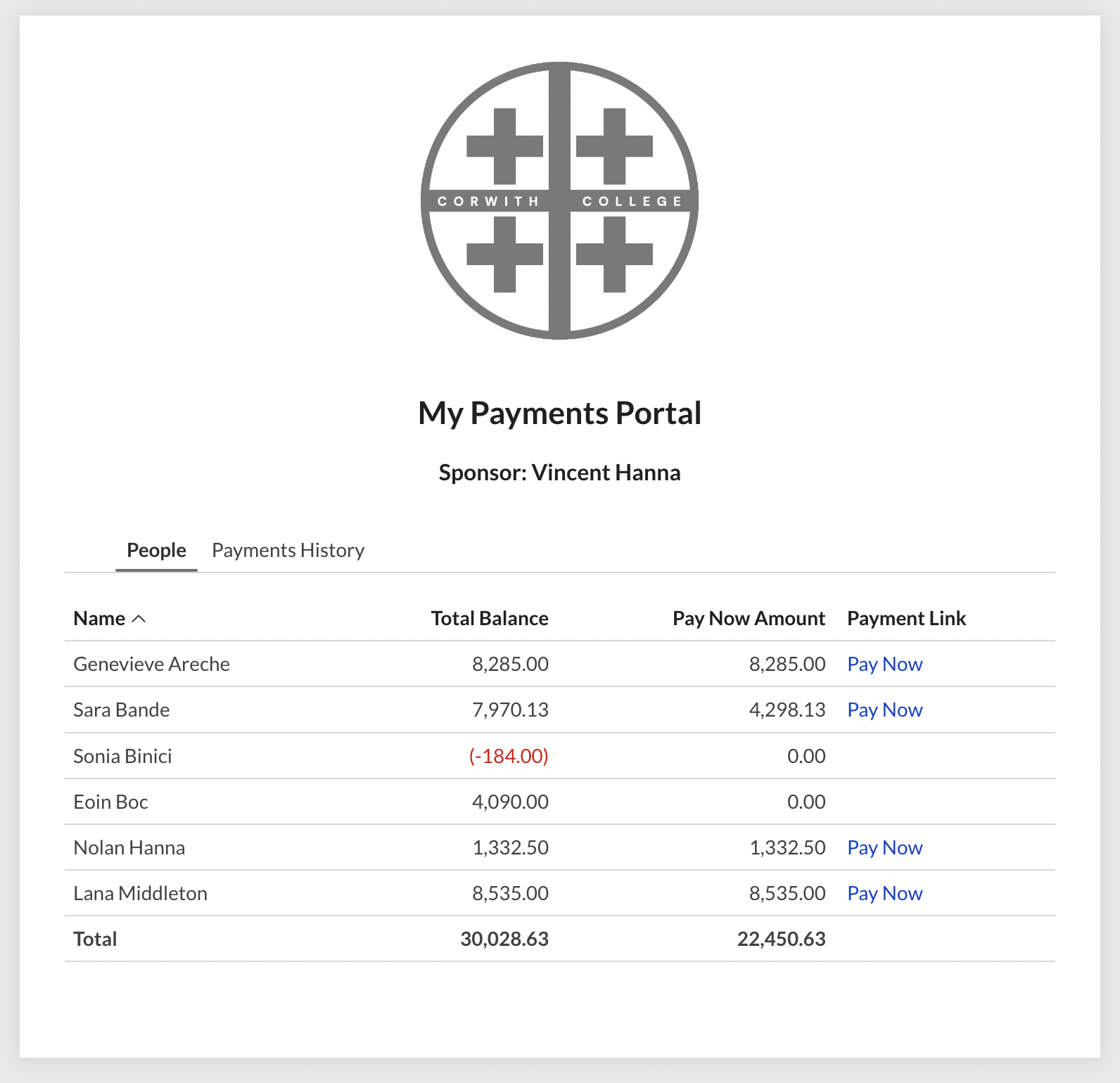
The sponsor will receive a link to their portal. It simply contains a list of sponsored students and a Pay Now link through which the sponsor can make payments on a student's account (the link only appears if the student has an amount due). These payments work just like any other online payment—convenience fees may apply, oldest invoices get paid first, etc.
0 Comments