ID photos need little introduction—who doesn't want to put a face to a name, or, if you're like most Populi schools, dozens, hundreds, or even thousands of faces to dozens, hundreds, or even thousands of names? Here are the various ways to put ID photos on profiles.
Profiles
By default, only Staff and Faculty can upload their own ID photos; Staff users manage ID photos for students, leads, etc. In Account > Account Settings > Security, a Populi Account Administrator can enable the Allow all users to upload ID photos setting, which lets anyone with an active user account to upload their own ID photo.

You can add an ID photo when adding the person or any time later on. If you need to change the photo, these instructions work for that, too.
- Click the ID photo.
- If the person already has a photo, click Change and then follow the rest of these instructions.
- Click to search for a photo to upload or drag and drop into the file upload area.
- You can also take a snapshot with your computer's camera. Make sure it's turned on and give permission for Populi to access it.
- Is the image sideways or upside-down? Click Rotate image until it's oriented properly.
- Use the cropper to crop and resize your image, if necessary.
- Click Save when you're finished.
ID Photos in Contacts > People
In Contacts > People, the ID Photos button avails you of two tools that let you streamline the addition of ID photos to groups of people: the Kiosk and the Import Photos tool.

ID Photo Kiosk
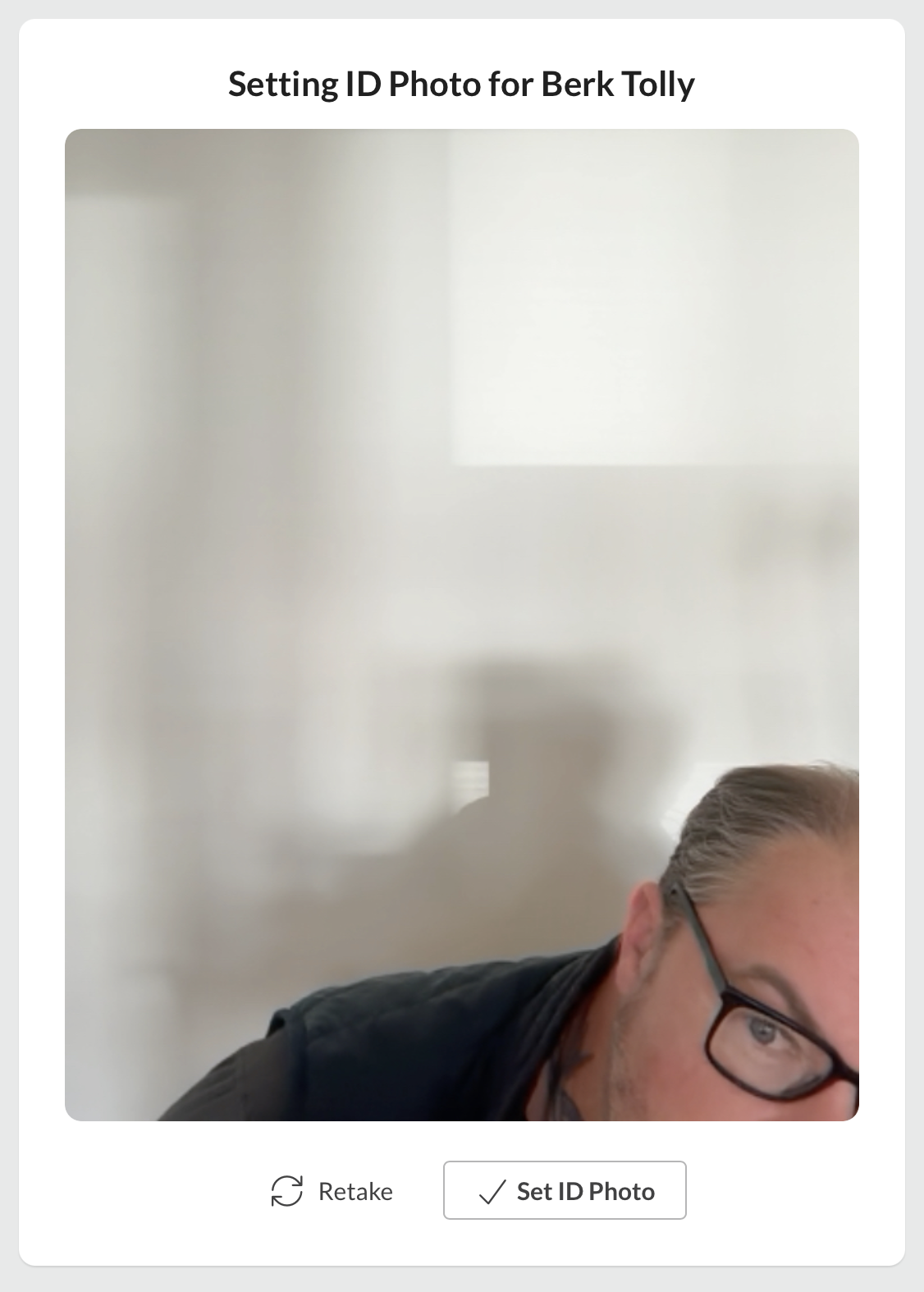
The photo kiosk lets you use your computer's camera (or a camera connected to your computer) to take ID photos for anyone at your school.
- Click ID Photos and select Launch ID Photo Kiosk.
- To start the kiosk, you will be logged out of Populi.
- If you haven't already, give Populi permission to access the camera you're using.
- Once in the kiosk, search for a person. You can also choose an ID Card template if you'd like to generate a school ID card.
- Take the photo and choose whether to retake it or set it as the ID photo.
- Repeat until you're done.
ID Photo Import
The photo importer lets you upload a .ZIP archive of photo files. It matches photos to people using the image's filename (more below) and utomatically crops the images to fit the ID photo's aspect ratio. The nitty-gritty:
- The importer can handle no more than 100 photos at a time; you may need to break your imports into multiple batches.
- The images must be in
.jpgor.pngformat. - The tool matches photos to people using the image filename. Your filenames must be one of the following:
-
Populi Person ID:
123456.jpg -
First, Last:
george_smiley.jpg -
First, Middle, Last:
george_quaid_smiley.jpg -
First, Middle Initial, Last:
george_q_smiley.jpg
-
Populi Person ID:
- Your images must be collected into one, single
.ZIPfolder (no sub-folders!).
Here's how to use the importer...
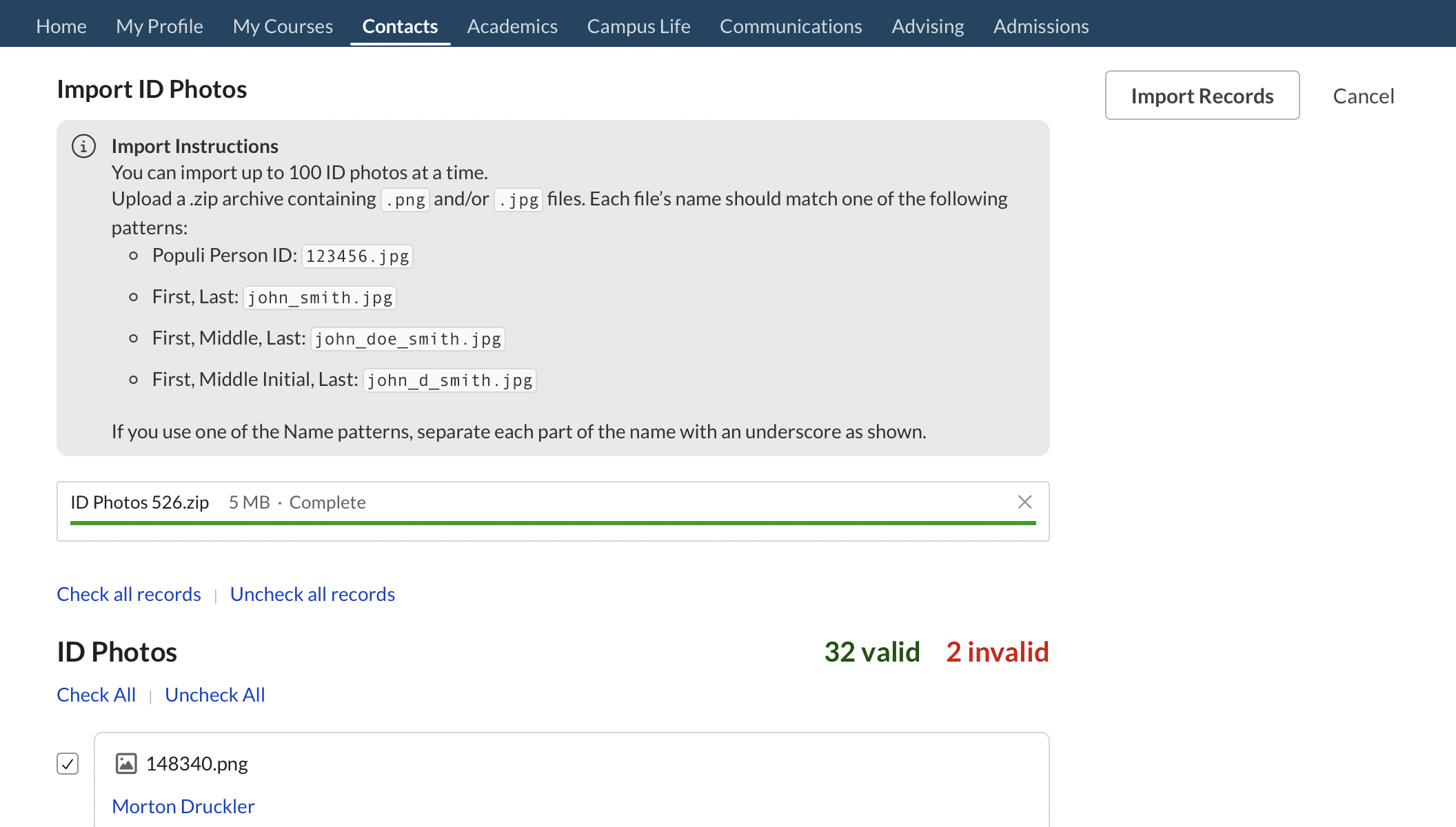
- Click ID Photos and select Import ID Photos.
- Upload the
.ZIPfolder. - Once it's fully uploaded, Populi will start doing its thing. The tool may take a little bit of time to ruminate on your files, match them to profiles, crop/resize images, and reject non-conforming files.
- Once the ruminating is done, you'll see a list of valid and invalid entries. Review the list, un-check any problematic items among the valid entries, and click Import Records to finish the upload.
0 Comments